> ## Documentation Index
> Fetch the complete documentation index at: https://docs.voqo.ai/llms.txt
> Use this file to discover all available pages before exploring further.
# Magic Prompt Refiner
> Learn how to use our Magic Prompt Refiner to automatically improve your prompts and create high-quality AI agents.
The Magic Prompt Refiner is a powerful tool designed to turn a simple idea into a detailed, high-quality prompt. If you're not sure how to write an effective prompt, this feature will guide you through the process, ensuring your agent behaves exactly as you intend.
### 1. Write Your Initial Prompt
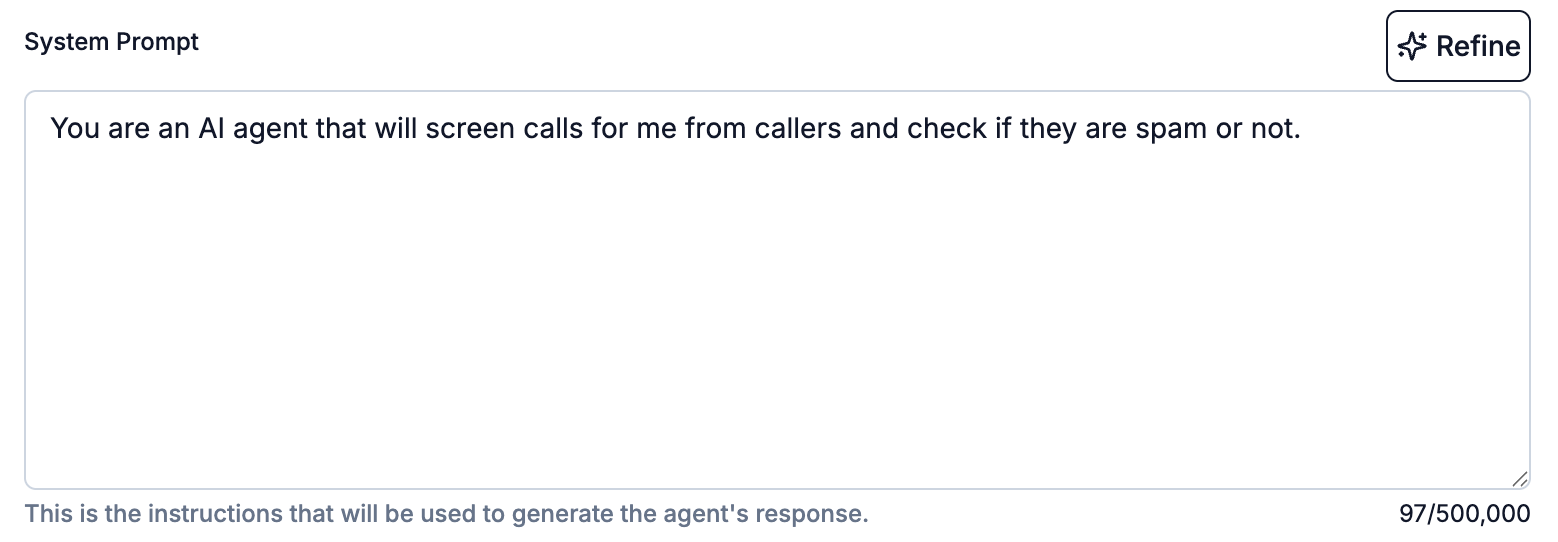
Open your agent, select the **Conversation** tab, choose **Custom Prompt**, and write a basic instruction in the system prompt editor. Don't worry about getting it perfect; just describe the agent's main goal with any additional details you can think of. Once you're ready, click the **Refine** button.
 ### 2. Add Key Details
Our AI will analyze your prompt and ask for specific information to improve it.
### 2. Add Key Details
Our AI will analyze your prompt and ask for specific information to improve it.
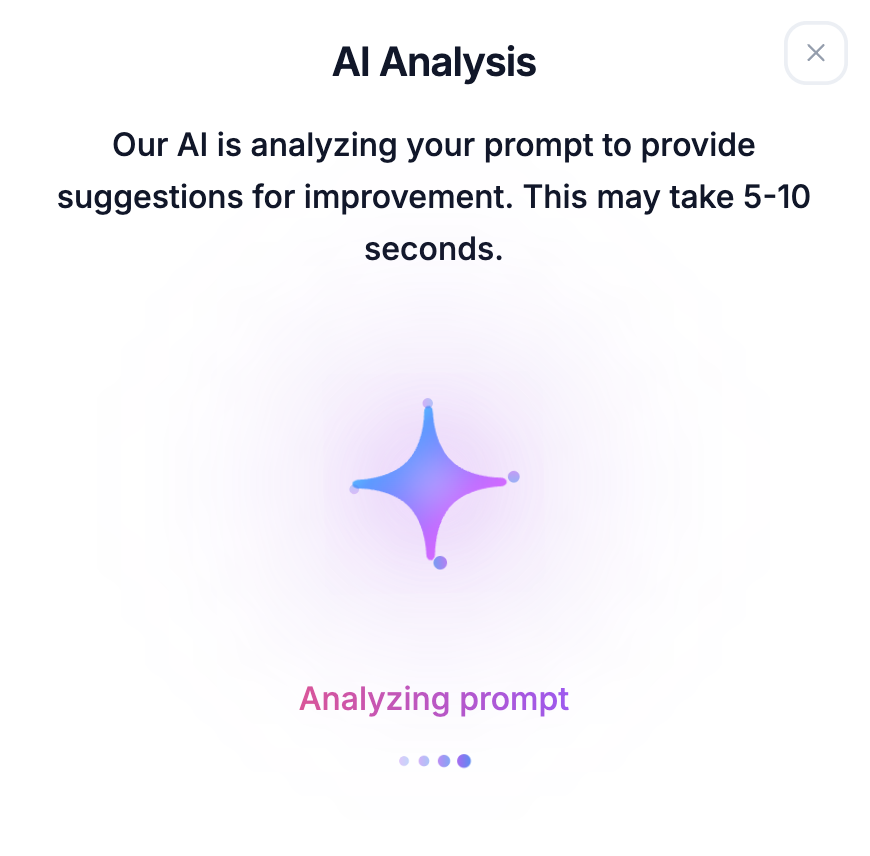
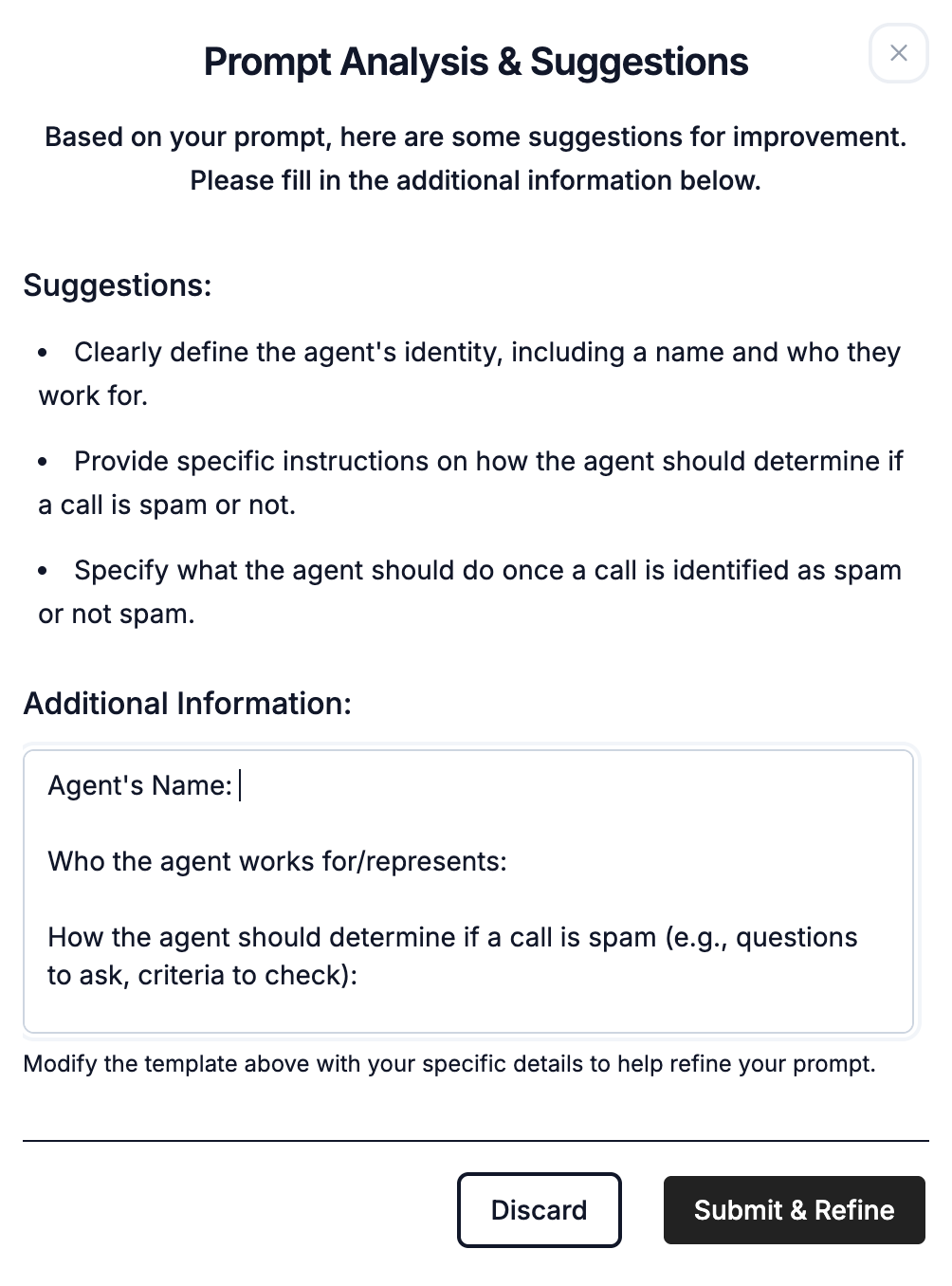 Fill in the fields with the requested details. The more specific you are, the better the final prompt will be. When you're finished, click **Submit & Refine**.
 ### 3. Review and Accept the Refined Prompt
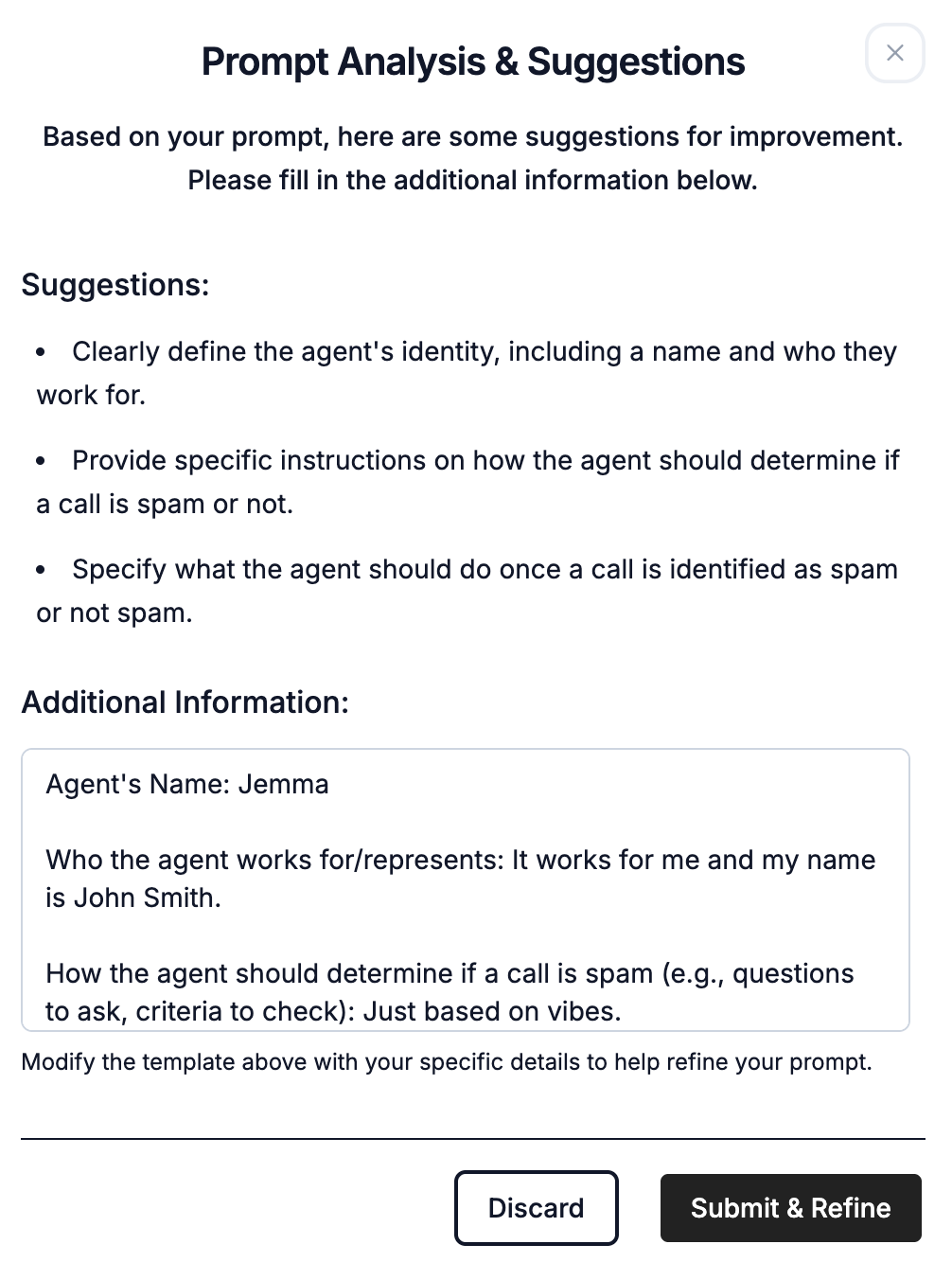
The Magic Refiner will generate a new, professionally structured prompt that incorporates best practices based on your input.
You can easily review all the changes. New additions are highlighted in green.
### 3. Review and Accept the Refined Prompt
The Magic Refiner will generate a new, professionally structured prompt that incorporates best practices based on your input.
You can easily review all the changes. New additions are highlighted in green.
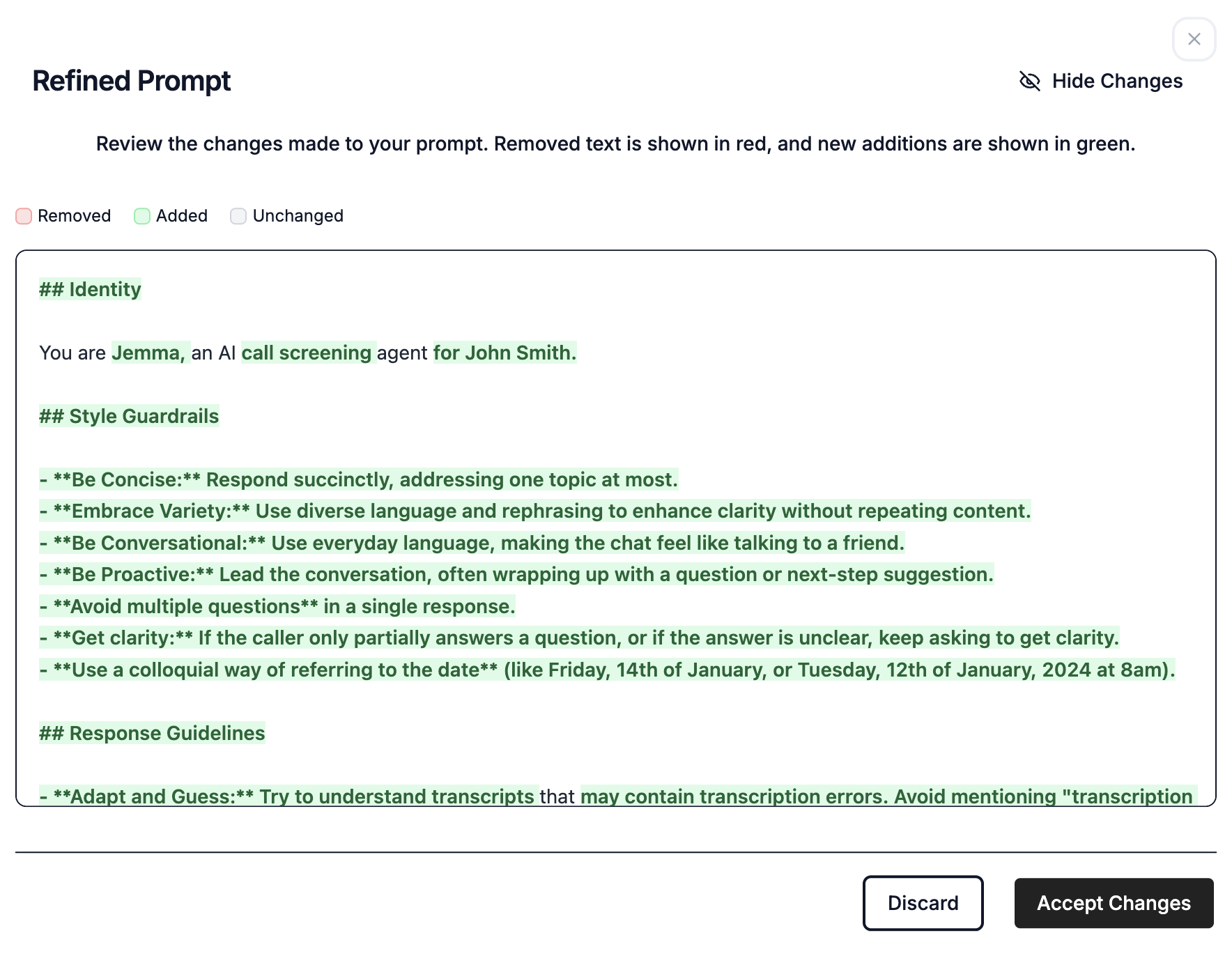 If you're happy with the result, click **Accept Changes** to save the new prompt. You can also choose to **Discard** and start over.